Canva 101 for Beginners

Part 3: Text Effects, File Types for Download

Only editable by group admins

  • Last updated January 27, 2024 at 9:23 AM by sweethometc
  • Evidence visible to public
Animate text formats and adding GIF elements to your design.

In This Task…

You will learn how to add various effects to your design and to explore the possibilities beyond JPEGs and PDFs.

Your Task…

  1. Watch the video: “Add Text Effects and GIFs to Your Canva Designs” (09:47)
  2. Practice using techniques such as:
    1. (00:00 - 01:50) Adding Bitmojis and removing backgrounds
    2. (01:50 - 04:05) Text Effects
    3. (04:10 - 06:25) Text Animations
    4. (06:25 - 07:50) Adding GIFs to your design
    5. (07:50 - 09:57) Downloading GIF file type (adding design to Google Slide Presentation)

Resources…

Adding Text Effects and GIFs to Your Canva Designs

Evidence of Learning…

  1. Create a new design that will help support content in your class.
  2. Add some effects to your text (basic shadow, splice, hollow OR any animation of your choice!)
  3. Add any GIF element to your design!
  4. Download your design as GIF file and submit it to showcase the various effects.

All posted evidence

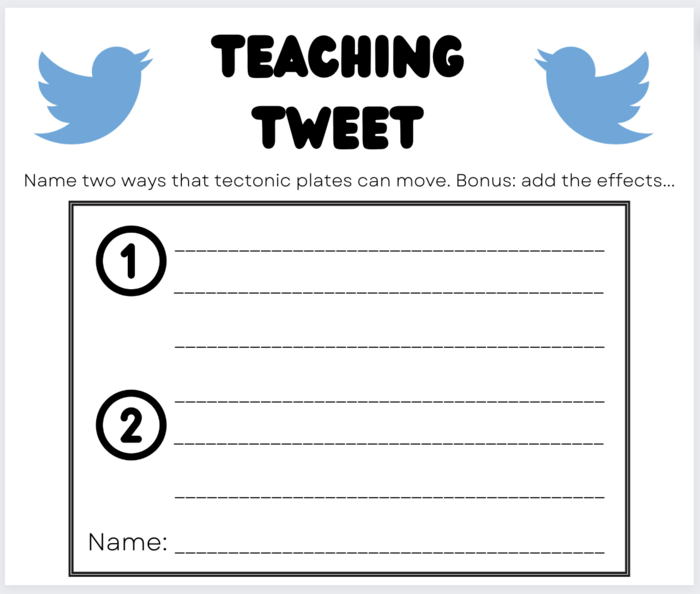
I couldn't figure out how to upload this as a gif file, but this was fun to make as an exit ticket that kids can fill out on seesaw!

emily-mielcarek Almost 3 years ago

Posted Image

There was a problem processing this image, the file may be of an invalid format.

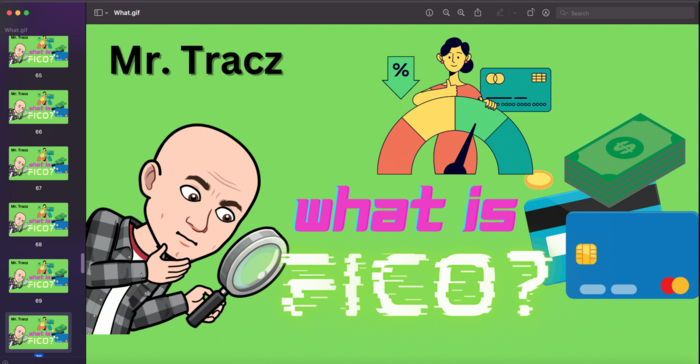
Uploaded Filename: What.gif

dtracz Almost 3 years ago

It didn't like processing my Gif the first two times, so here is a screenshot of it.

dtracz Almost 3 years ago

GIF! I love this, especially for opening activities!

There was a problem processing this image, the file may be of an invalid format.

Uploaded Filename: What.gif

dtracz Almost 3 years ago