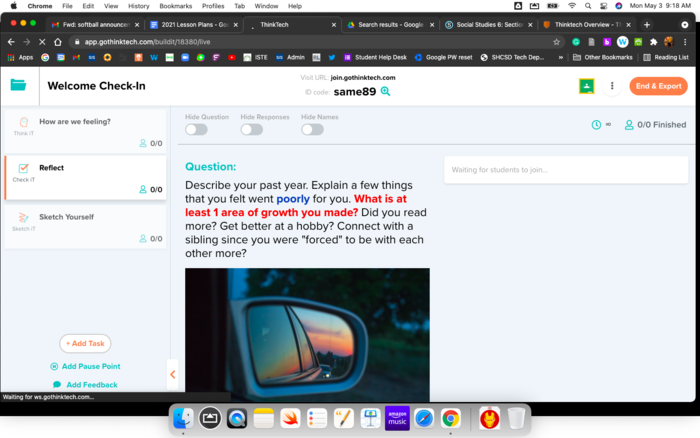
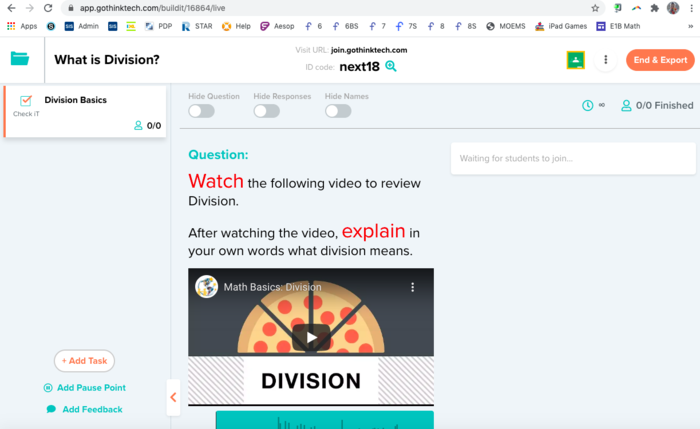
Understand how Thinktech is set up so you can begin creating a single or multi-task lesson for your class tomorrow.
Overview:
Watch the video below: "Thinktech Teacher Dashboard" video to learn how Thinktech functions.
Task:
[1] Access your account
http://wwwgothinktech.com[2] If you forgot your password, please click on the instructions on the main page.
[3] If you are still struggling to access your account, please contact your Tech Coach
[4] Follow the steps below to show your Evidence of Learning
Evidence of Learning:
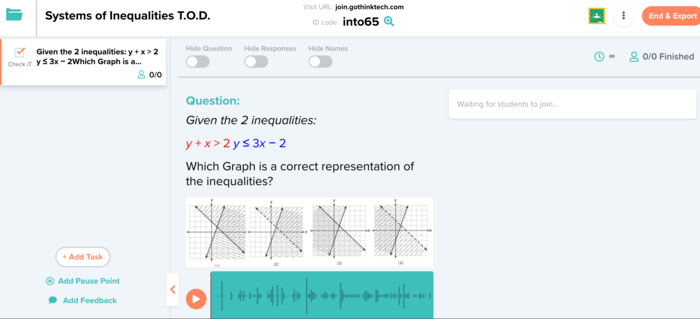
- Check iT Demonstration (2:48-6:15)
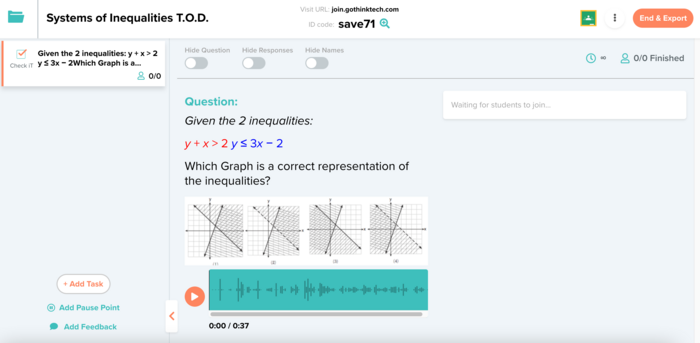
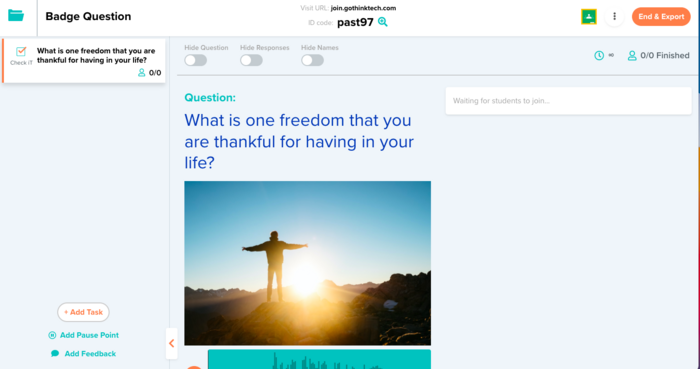
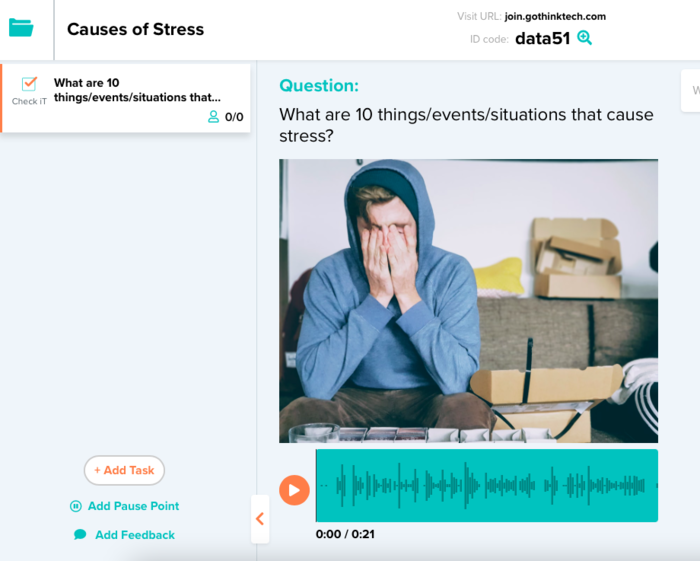
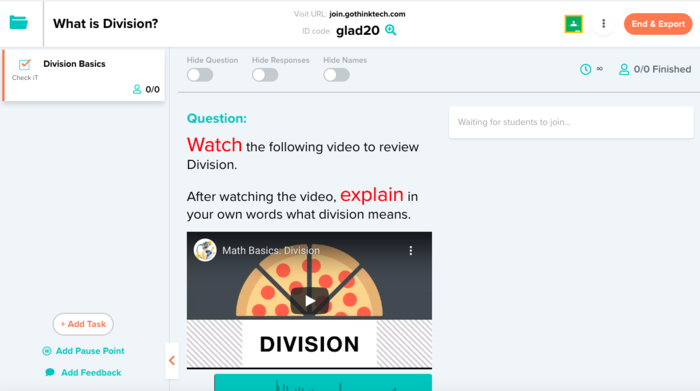
- Create a Check iT task.
- Alter the font size or color.
- Add some audio and your choice of a sketch, PDF, pic, YouTube video, or math formula.
- Launch the task.
- Submit the launch task as evidence. Please keep the lesson "live" until you receive your badge.
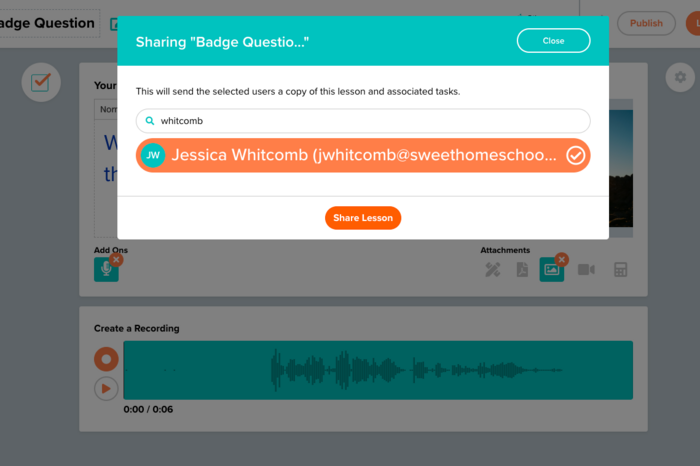
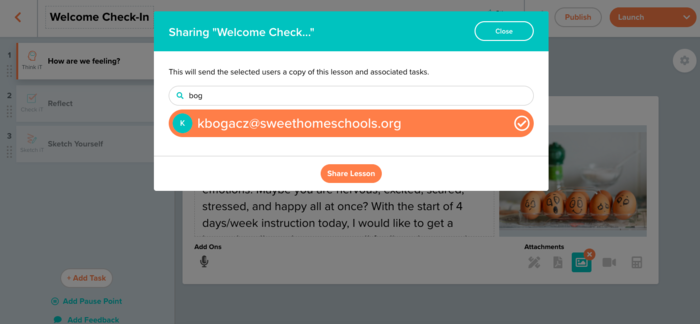
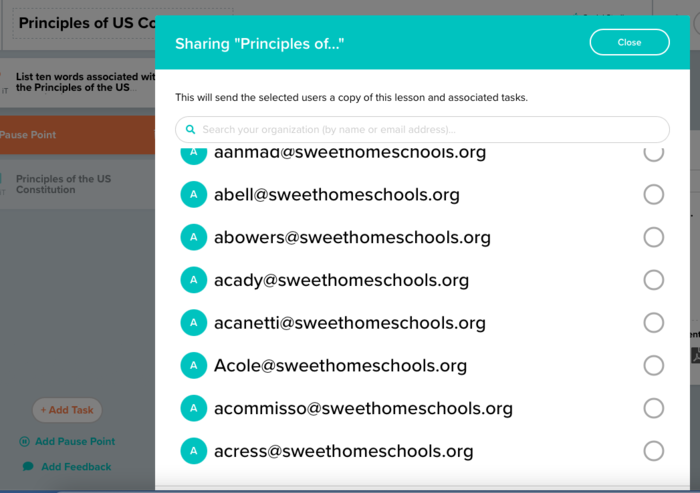
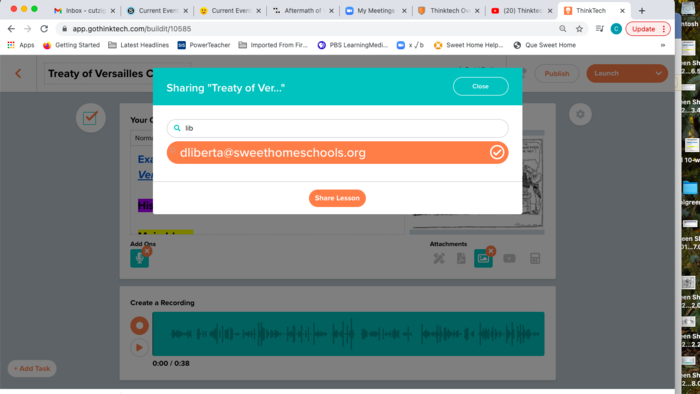
- Share your Lesson (6:15-7:10)
- Try sharing this task (or a different one) with a teacher in your district.
- Submit a pic of the email dropdown option in Thinktech.



 Thinktech - Level 1: Getting Started