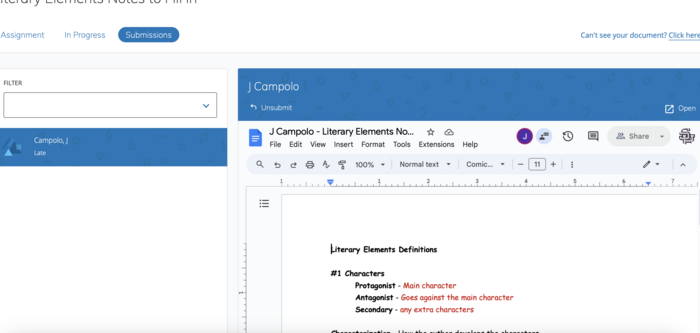
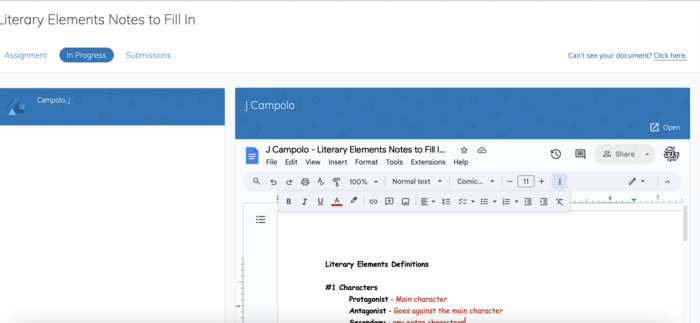
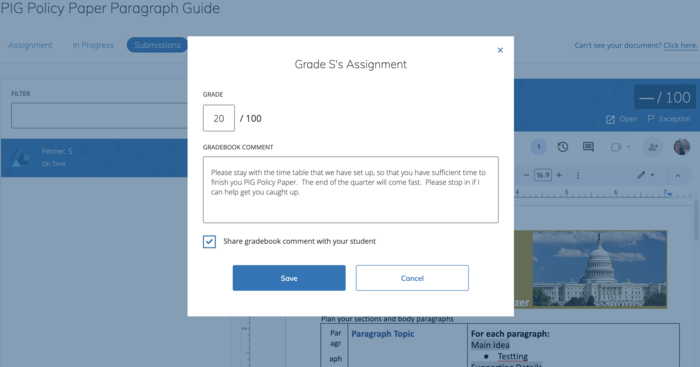
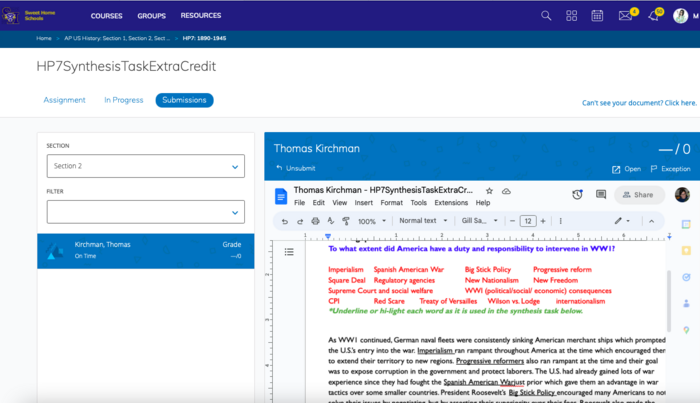
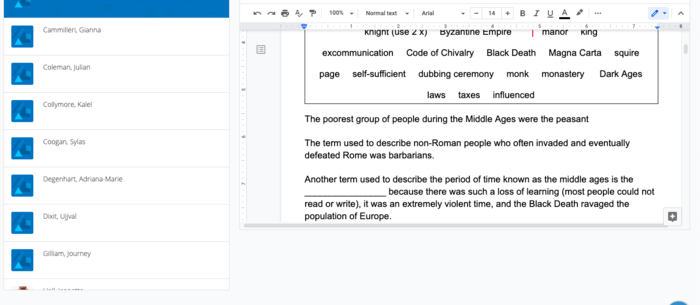
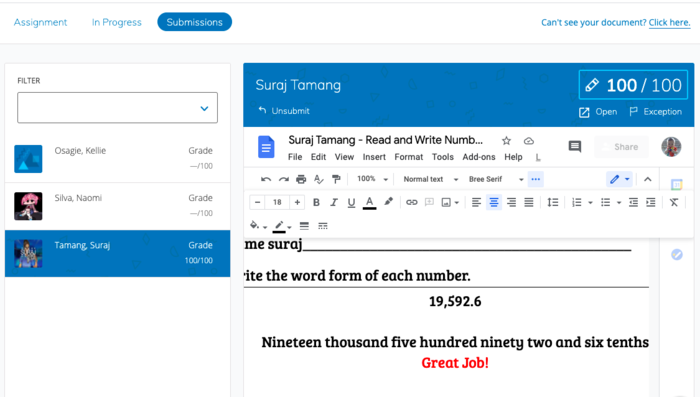
Part 3 will focus on the look and feel of the Schoology Google Drive Assignment once it has been created on both the student and teacher side. You will also learn how to grade these items once they are submitted.
In this Task:
Watch the section of the video below (6:15 - 14:13) to see how the student and teacher workflow si done using a Schoology Google Assignment.

Resources:
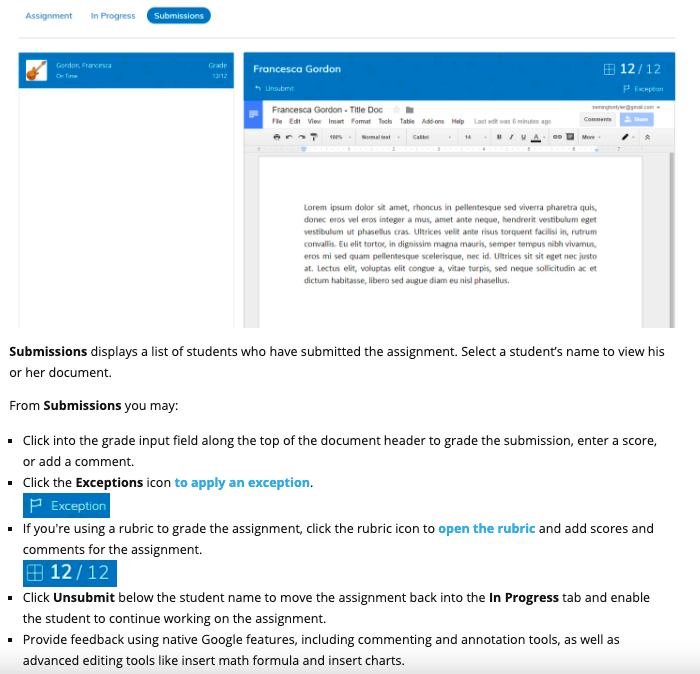
Look below for some helpful information on how to grade an assignment that is in the submission tab you saw in the video above.
Evidence of Learning:
[1] Go to your Schoology course and grade a student assignment using a rubric or numerical score and also provide any necessary feedback you wish to give the student.
[2] Take a screenshot of the graded assignment and submit it for badge review.



 Schoology Level 4.1 Google Files

 kpiurek
Almost 2 years ago
kpiurek
Almost 2 years ago