Part 2 will teach you how to create your Schoology Google Drive Assignment and publish it for your students. You will also take a brief tour of how to navigate the different look to these assignments.
In this Task:
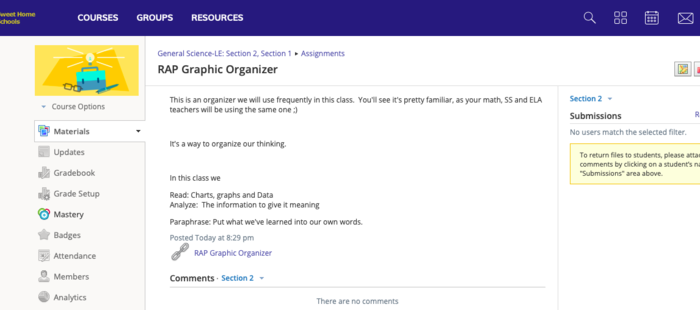
Watch the video below (start of video at 6:10) to learn how to set up your Schoology Google Assignment and see the look and feel of one once it is created.
Evidence of Learning:
[1] Create the assignment in Schoology that you want students to access the document you created in Part 1 of this badge. - (be sure to attach your google file as described in the video)
[2] Publish the assignment
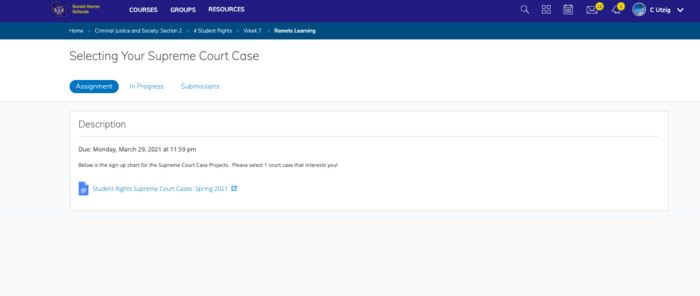
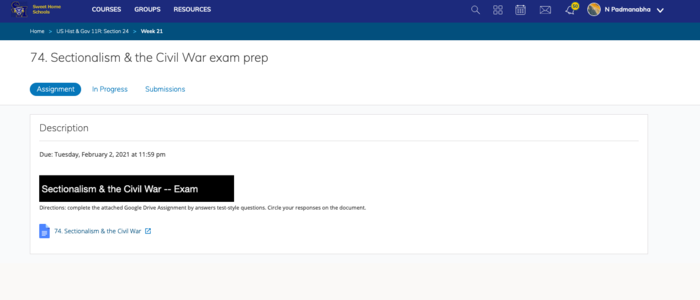
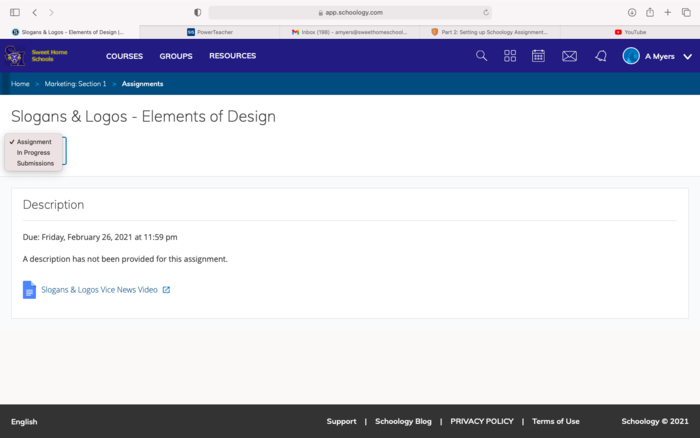
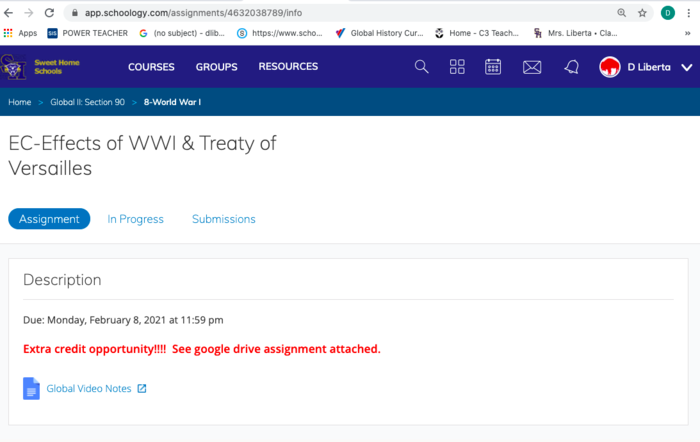
[3] Take a screenshot of your published assignment in Schoology. (be sure to screen sho the assignment once it is open and not just in the materials list on your Schoology course.)
[4] Submit your pic(s) for badge review


 Schoology Level 4.1 Google Files