Watch the tutorial, practice these skills, and submit a screenshot as evidence of learning.
1️⃣ TUTORIAL
Watch the following video and reference the articles linked below as needed.
2️⃣ PRACTICE THESE SKILLS
Take time to practice the skills that you learned in this tutorial by setting up a Google Classroom for your students.
3️⃣ EVIDENCE OF LEARNING
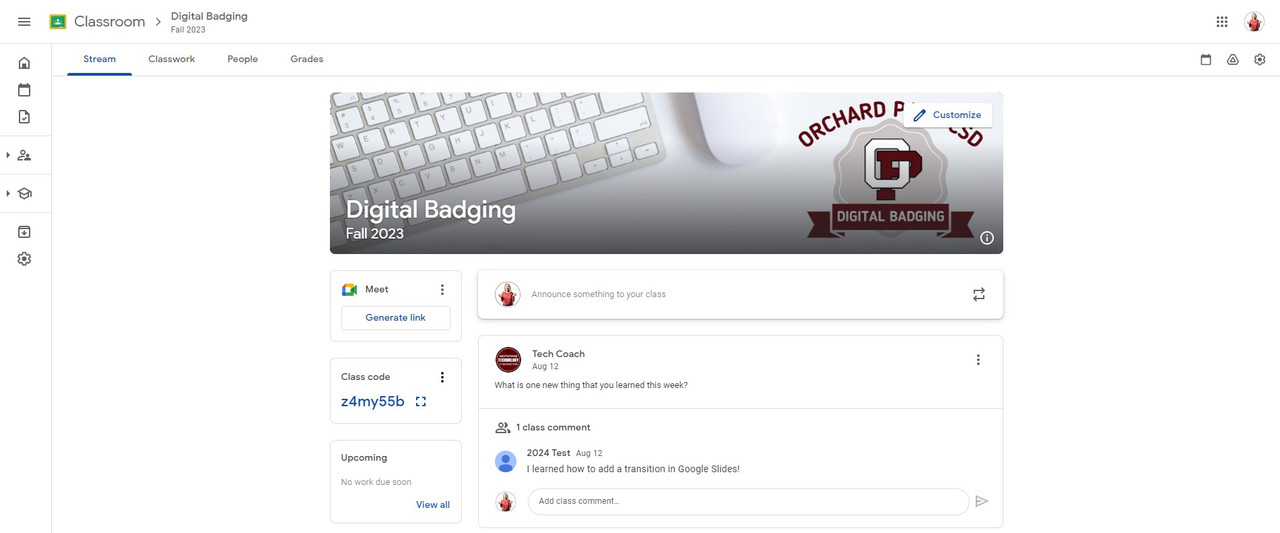
Set up a Google Classroom and submit a screenshot of the Stream tab. Be sure that your Google Classroom is named, you have customized the theme, and you have at least one announcement in your Stream.
Example:
 As a reminder, directions on how to take a screenshot are listed below. Please do not use a smartphone to capture and upload a screenshot as the image file types are not always compatible.On a Windows device:
1. Open the Snipping Tool
2. Click 'New'
3. Use your mouse to select the part of your screen to capture
4. Save the screenshot by clicking 'Save As'. Be sure to select the location that you'd like to save it to.
On a Chromebook:1. Press Control+Shift+'Switch Window' button
2. Move the Crosshair to select the part of your screen to
3. Image is most likely saved in your Downloads folder
On a Mac:
1. Press Shift+Command+4
2. Move the Crosshair to select the part of your screen to capture
3. Image is most likely saved on your Desktop


 Google Classroom: Level 1